Search this blog

Sunday, May 25, 2008

Find visited urls and cookies of every user in index.dat

When you delete the visited urls and the cache in Internet Explorer after disconnecting your computer from the internet you are safe, right ? Many users think that it is impossible to find out which websites have been visited when they delete the cache and the history. This is not true..

The file index.dat which exists many times on windows xp accounts, to be precise many times for every user, stores visited urls and cookies for instance even though you deleted that information before. Microsoft surely has a good explanation for this, right ? They say it is to speed up Internet Explorer but this sounds somewhat fishy, why would you need for instance the cookies if you have deleted them ?

To find index.dat on your computer you need to do the following (Win xo only). Open any folder, click on tools, folder options. Select view from the tab and uncheck “hide protected operating system files” and make sure “Show hidden files and folders is enabled”. Now search for index.dat and windows will come up with some search results.

It does help to view the file in an normal editor, it won’t show anything. What you need to do to see the list of urls or cookies is to download the sweet little tool Pasco created by Keith Jones. It is a freeware command line utility. Unpack it, copy any of the index.dat files into the bin dir of pasco and fire up the command line mode of windows xp. (Hit Windows key + R, enter cmd and hit enter)

Change to the pasco dir and enter the following command:

pasco index.dat > urls.txt

Pasco creates a text file with all urls that are saved in the index.dat file. You can then view the with every text editor available. The same works with the index.dat that holds the cookies of course.

Ever wanted to know what your kids, husband, wife, friends, co-workers do when they are alone ? Use the index.dat file to find out.

How to remove the index.dat file:

The index.dat file is protected in windows and you will have a hard time deleting it from within.

These data files are used by Internet Explorer and Windows Explorer. You cannot delete a file that is in use by a running program. If you feel you need to delete the file, you will have to shutdown all instances of Explorer and IE. This includes applications that may host the Webbrowser control: Outlook, Messenger, IE, Product Studio, Visual Studio, Help, Windows Media Player, etc. Your best bet is just close everything. When you are left with a desktop and a start menu, you will still need to shutdown Explorer. To cleanly shutdown Explorer: Start->Shutdown->CTRL+ALT+SHIFT+Click ‘Cancel’ (for more info, see this post). You can use Task Manager (CTRL+SHIFT+ESC, File->Run…) at this point to open a command window. You should be able to go delete the index.dat. I have only tried this on XPSP2, but it should work anywhere.

Another way would be to boot either into safemode or dos to kill the file.

The new Internet Explorer 7 apparently fixes this issue

Reveal Saved Internet Explorer Passwords

It is very convenient to save login passwords for internet sites such as forums, blogs or paysites to login quicker to those websites. That is, it is great until you can’t remember the password anymore but would like to know it again. This could be the case if you want to switch from Internet Explorer to Firefox or Opera for instance. Protected Storage Pass View does not only reveal passwords that have been saved in Internet Explorer while accessing protected sites or using the auto complete form but also passwords that have been saved in Outlook Express and MSN Explorer.

ie pass view

All of the passwords are encrypted and possibly hidden in the registry and Pass View automatically scans and displays all the information that it can find in the registry. Internet Explorer passwords are shown next to the url and the username which is all the information one needs to access the site again.

Please note that only the passwords of the user who is currently logged into the system are revealed in this manner. Click here to download protected storage pass view and ie pass view.

IE7 pro Add-on for Internet Explorer

I’m not using Internet Explorer 7 at all but I know some guys who like it so much that they might ditch Firefox for it. The new Internet Explorer 7 has basically the same functionality and expandability as Firefox. You can download add-ons for Internet Explorer 7 to add functions to it. The Windows Marketplace lists more than 550 add-ons for Internet Explorer 7. The major difference that I can see is that Microsoft offers free and commercial add-ons for Internet Explorer 7 while I do not know of a single Firefox add-on that is commercial. (correct me if I’m wrong)

IE7 pro is one of those add-ons that everyone can download for free from its own website or the Windows Marketplace. It adds six new features to Internet Explorer 7, those are: Ad Filter, Super Drag and Drop, Mouse Gestures, Save Page to Image, Quick Switch Proxy and Enhanced Tabbed Browsing Capabilities. Save Page to Image is a very interesting add-on. It makes it possible to save the page as an image and choose from various image formats including jpg and png.

The Ad Filter should be useful for all Internet Explorer 7 users as well and Enhanced Tabbed Browsing Capabilities add eight new functions to it like hiding the search bar, enabling crash recovery and opening new tabs from the address bar.

I never used Mouse Gestures and think that this is a pretty useless feature but some guys seem to like it. Super Drag and Drop is very much like Super Drag and Go, the Firefox add-on. The only difference is that the Internet Explorer 7 add-on can’t save images by dragging them some inches.

Internet Explorer 7 users should take a look at IE7 pro and test it for a while. It is a free add-on and can be uninstalled without problems if you feel that you do not need the functionality.

Improve Internet Explorer with IE Surfgear

Tiny text that can’t be changed. Background textures that hurt your eyes. A font color with a low contrast to the background color, e.g. dark blue font on dark background. I guess we all have experienced websites that had a design like this, always thought it was there to hurt the visitor because I could not think of any other reason why someone would do things like that.

IE Surfgear to the rescue. The tiny program adds three functions accessible through buttons to the Microsoft Internet Explorer. Each button resolves on of the problems mentioned above. The first button automatically changes the font size of tiny text (and only of it, normal sized text will remain untouched) on a website to an average one, the next removes background colors of text on a website and the last removes background textures (including colors) that make text hardly readable.

The author was so nice to add a live demonstration on his website where you can try the buttons and see what they do. The buttons should be available right away after installing IE Surfgear, if they are not you have to customize the Internet Explorer toolbar to add them (or only some of them) to it.

ie surfgear

Click on Tools > Toolbars > Customize to add the buttons to your toolbar if they are not displayed after installation.

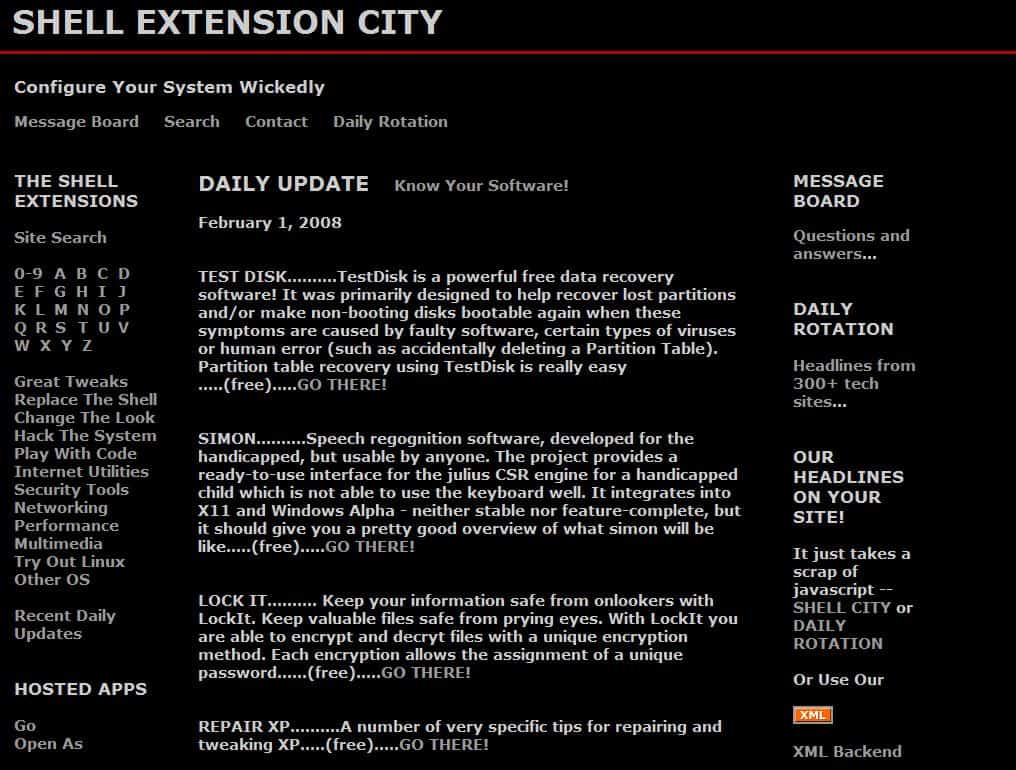
Funny side note. I did find the link to the program at Shell Extension City which is in my opinion a hard to read website with their black background and grey text. Take a look at the before and after (using the buttons) screenshots of the website.

shell extension city beforeshell extension city after

That’s a visible difference, don’t you think ?